0
Web views or Electron
A 2.5 MB native binary with instant startup, asynchronous icons & thumbnails, Spotlight search, and true Dark Mode.
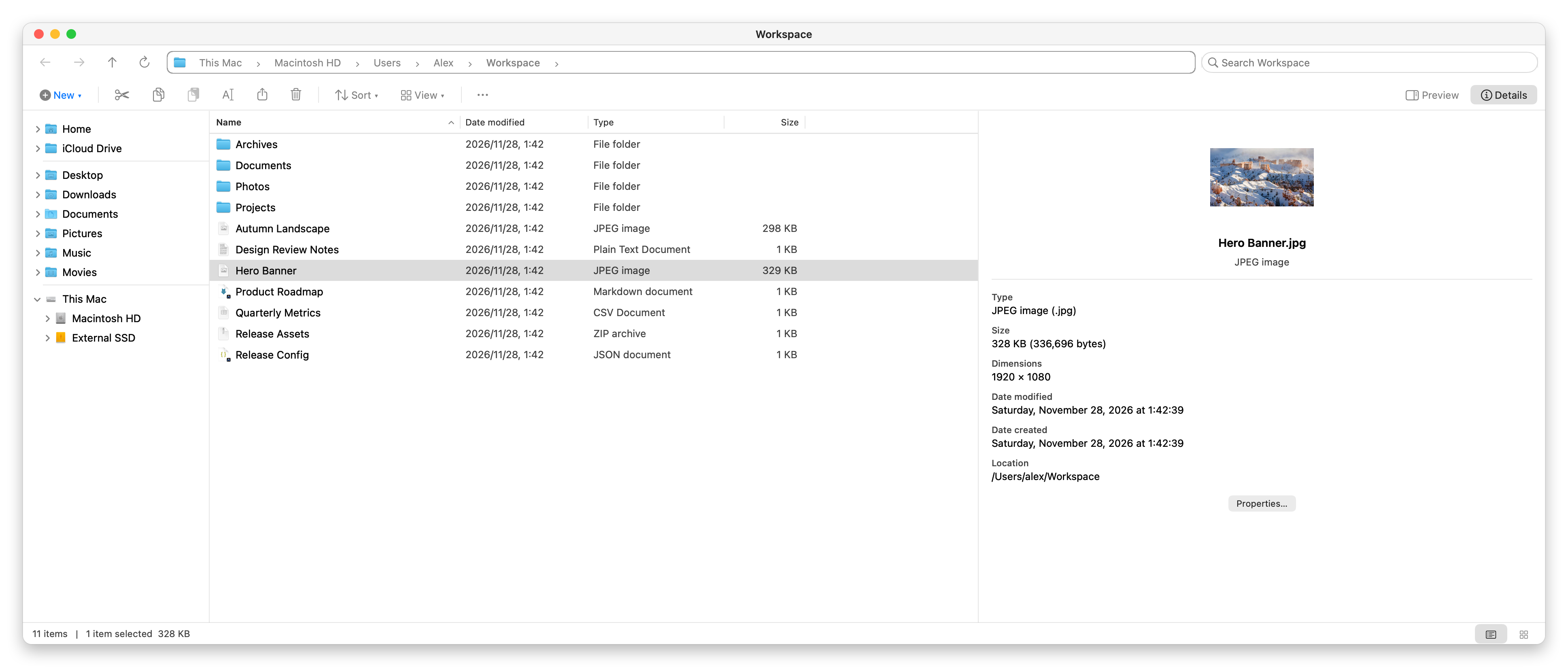
Windows File Explorer, reborn natively for macOS.
Real Cut & Paste, F2 rename, editable breadcrumbs, collapsible folder tree, archive browsing, and Dual-Pane mode — built from scratch in pure Swift & AppKit.
Pure Swift & AppKit. Instant launch, native speed, familiar muscle memory.
Built Native
No Electron wrappers. No sluggish web views. Arbor talks directly to AppKit, Spotlight, and Quick Look so your Mac feels fast — and your hands feel right at home.
A 2.5 MB native binary with instant startup, asynchronous icons & thumbnails, Spotlight search, and true Dark Mode.
Details, List, Small to Extra Large icons, Tiles, and Content — each folder remembers its own view, sort, and groups.
English, 简体中文, 繁體中文, 日本語, 한국어, Español, Français, Deutsch, Português, Italiano, and Русский — switchable right in Settings.
Cut actually moves files. Cut items dim cleanly until pasted, press Esc to cancel, and every move, copy, rename, or delete supports app-wide ⌘Z Undo.
Open archives without extracting first. Double-click `.zip`, `.tar.gz`, `.tar.bz2`, `.tar.xz`, or `.tar` to browse inside, preview with Space, or compress to 5 formats.
Familiar by Design
Switching from Windows to Mac shouldn’t erase decades of muscle memory. Arbor keeps every detail that makes Windows 11 File Explorer effortless, while feeling 100% native to macOS.
Click empty space or press ⌘L / F4 to type ~/Downloads, \\nas\share, or even type cmd / zsh to open Terminal right here.
Copying into an existing folder asks once at the top level, merges subfolders silently, and only prompts on clashing files — with Replace, Skip, or Keep Both.
Click or drag past the last column in Details view to deselect, marquee-select rows, or pull up the folder’s own context menu — just like Windows Explorer.
Views & Panes
Switch between 8 Explorer layouts with ⌃⇧1–8 or zoom smoothly with ⌘+ / ⌘−. Toggle Preview, Details, Dual-Pane, Tabs, or even an in-window Menu Bar.
Split any window into two independent panes side by side. Press F6 to jump focus between panes for fast drag-and-drop or comparison.
Native macOS tabs with middle-click open, ⇧⌘T Reopen Closed Tab, and ⇧⌘D Duplicate Tab — or disable tabs altogether in Settings.
Prefer File · Edit · View · Go directly under the title bar? Turn on “Always show menus” in Folder Options (off by default).
Keyboard First
Both Windows Explorer and native macOS shortcuts work seamlessly side by side. Click any key pair to inspect what it does inside Arbor.
Built for Power Users
Archive compression & virtual folder browsing, smart New ▸ templates, multi-tab Properties with checksums, and Spotlight search filters — all built in.
Type kind:image, ext:pdf, size:>10MB, or modified:week alongside wildcards like IMG_????.jpg.
Right-click photos to Rotate Right / Left 90° losslessly via macOS imaging tools or Set as Desktop Background in one click.
Create Finder-compatible aliases, Paste alias, or Send to Desktop, Compressed ZIP, and any mounted external drive.
Everyday Polish
Connect to SMB, AFP, NFS, and WebDAV shares with \\server\share or smb://, reconnect automatically at launch, and see all drives & Favorites at a glance on This Mac.
Set a system-wide global hotkey like Windows’ Win+E to open a fresh Arbor window from any app, and optionally set Arbor as your Mac’s default folder viewer.
Select twenty photos, press F2, and rename them all to Holiday (1).jpg, Holiday (2).jpg in one shot — with extension warnings and instant Undo.
Pin favorite folders to the sidebar, star files to This Mac Favorites, and jump back to Recent Files or frequent folders whenever you want.
Open & Trustworthy
A file manager touches everything you care about. Arbor stays completely local, transparent, and MIT-licensed.
Every line of Swift is public on GitHub. Audit it, customize it, or build it yourself with XcodeGen in seconds.
Direct GitHub releases are signed with Developer ID and notarized by Apple with Sparkle EdDSA updates. Prefer full App Sandbox? Install Arbor Files via TestFlight / App Store.
No sign-in, no subscription, no background telemetry. Arbor never phones home except when checking signed Sparkle release feeds.
Normal Delete moves safely to macOS Trash, permanent delete confirms first, and every file change is recorded as reversible Undo data.

Version 0.4.0 · Signed & Notarized
Requires macOS 14.0 Sonoma or later · Universal (Apple Silicon & Intel)